
TL;DR
Talo's game feedback makes it easy to collect structured player feedback directly in your Godot game. In this tutorial, you'll learn how to integrate feedback collection with categories and contextual props.
- What you'll learn: How to collect categorized feedback with automatic context tracking using the Talo Godot plugin
- How Talo helps: Categories for organization, props for additional context, search + filtering tools
Collecting player feedback
Player feedback is essential for understanding how your game is being experienced in the wild. Comments scattered across Discord, social media and forums can sometimes be hard to track or lack context. Feedback like "the game is too hard," is impossible to act on without context like what level the player is on or how many attempts they've made.
Talo's game feedback centralizes all player feedback in one place (the Talo dashboard) and can capture contextual information about their play session, making feedback easy to understand and act on.
Understanding categories and props
Talo's feedback system has two key features that make player feedback actionable: feedback categories and props.
Feedback categories
Player feedback can be easily tagged and organized using categories. Instead of a generic comment box, you create specific categories that match your needs. Here are some examples:
- Bug Reports: Technical issues and errors
- Gameplay Feedback: Mechanics, balance, and pacing
- Feature Requests: New features or content players want to see
- General Comments: Open-ended thoughts that don't fit into one particular category
You can decide how to surface categories. You could let players choose from a dropdown or enforce different categories in different parts of your game's UI.
Categories make it easy to filter and prioritize feedback in the Talo dashboard. You can quickly see all bug reports, or focus on feature requests when planning your next update.
Feedback props
Props are key-value pairs that add context to feedback submissions. When a player submits feedback, you can choose to include information like:
- Current level or area
- Player progression (score, unlocks, playtime)
- Game settings (difficulty, graphics quality)
- Session information (platform, build version)
For example, if multiple players report difficulty issues and they all have {"level": "boss_3", "attempts": "10+"}, you know exactly where to focus your balancing efforts. Props make patterns visible and help you understand the context behind player comments.
Setup the Talo Godot plugin
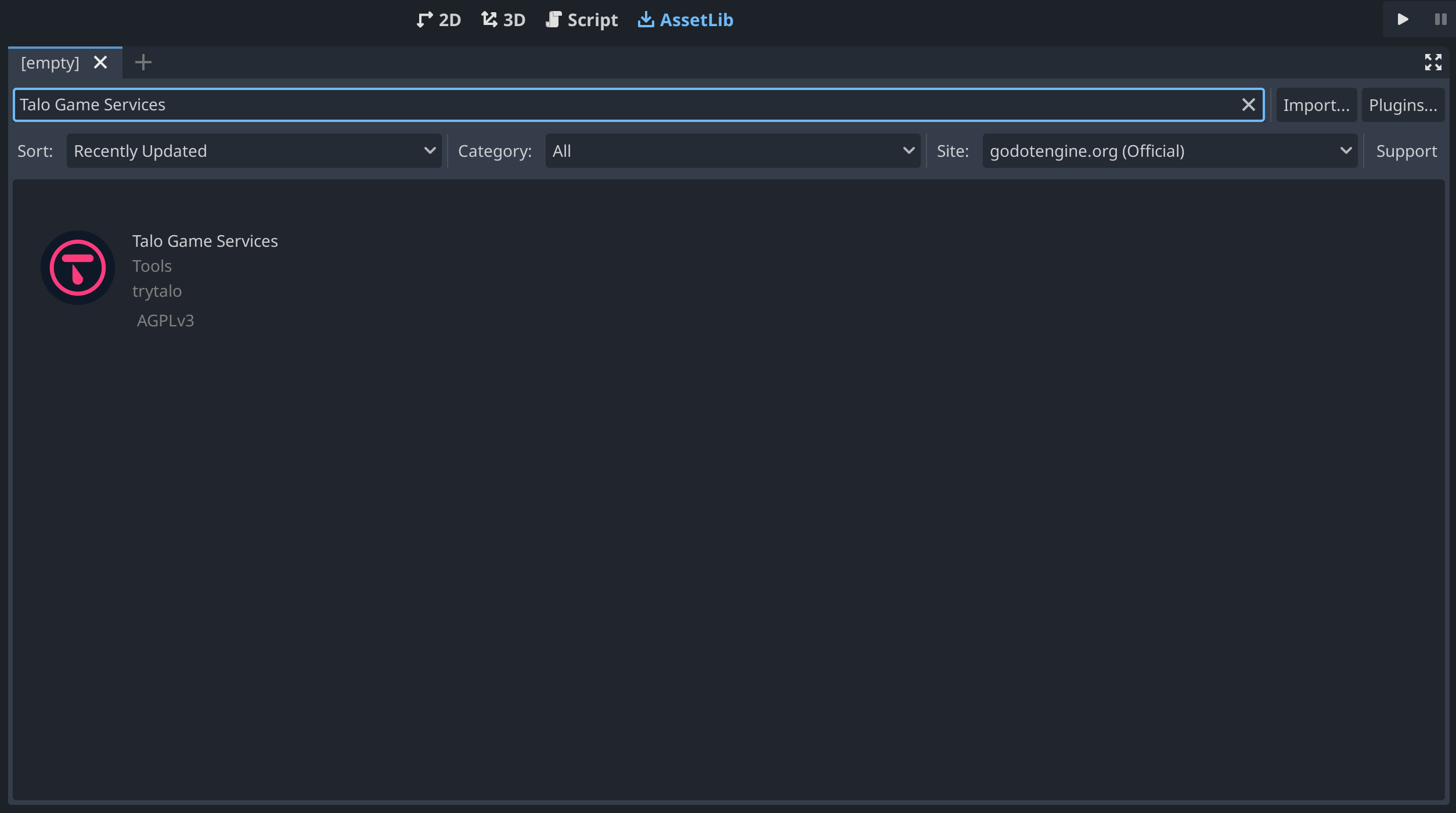
You can install Talo from the Godot Asset Library by searching "Talo Game Services" in the AssetLib tab. You can also download it from itch.io.
Enable the plugin
Import the plugin under the addons folder and enable it in Project > Project Settings > Plugins. Run your game once to generate the settings.cfg file.
Generating an access key
Head to the Talo dashboard, create an account and a new game. Navigate to the Access Keys page and create a key with these scopes:
read:playerswrite:playersread:feedbackwrite:feedback
Copy the access key into your settings.cfg file in the access_key field. For a more detailed setup guide, check out the documentation.
Creating your feedback categories
Open the Talo dashboard and navigate to the Feedback section under Services. Click "Create Category" to start adding categories.
Each category has an internal name (used when sending feedback) and a display name (shown to players). You can also control whether feedback in that category should be anonymised.
Here are some recommended categories to start with:
- Bug Reports (Anonymous: No) - Encourages players to report issues honestly
- Gameplay Feedback (Anonymous: Yes) - For mechanics, balance, and difficulty comments
- Feature Requests (Anonymous: Yes) - Player suggestions for new content
- General (Anonymous: No) - Open-ended feedback with player context
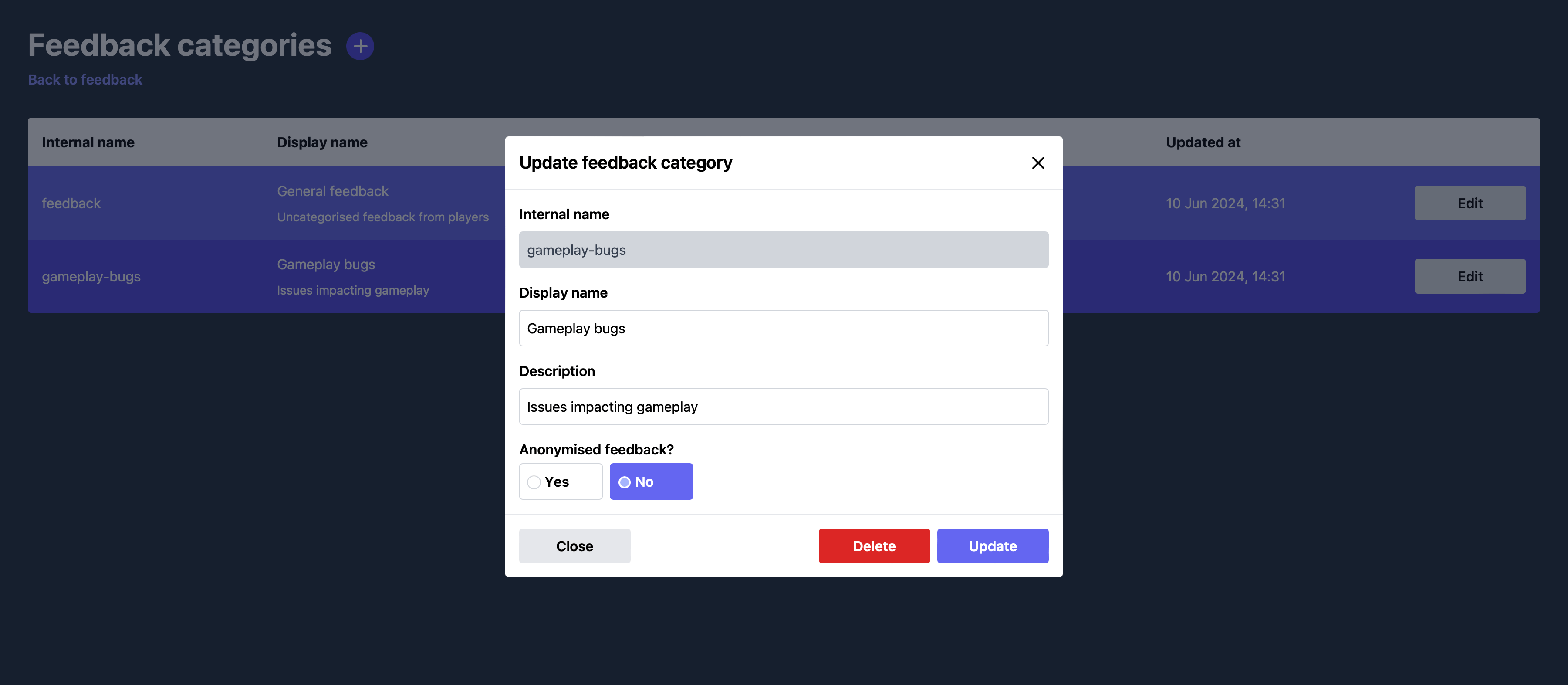
The anonymity setting controls whether feedback is linked to a specific player. Anonymous feedback encourages honesty, while identified feedback lets you see the player's event history leading up to their submission.
Integrating feedback collection
The Talo feedback system requires just two main API calls: one to fetch categories and one to submit feedback. Let's look at how to use them.
Fetching feedback categories
First, you need to load the categories you created in the dashboard:
var categories: Array[TaloFeedbackCategory] = []

func load_categories() -> void:
	categories = await Talo.feedback.get_categories()

	# Now you can display these to your player
	# Each category has: name, internal_name, and description
	for category in categories:
		print(category.name)  # Display name
		print(category.internal_name)  # Internal identifier
This returns an array of TaloFeedbackCategory objects that you can use to populate your UI (dropdown, buttons, list, etc.).
Submitting feedback with props
When a player submits feedback, you call send_feedback() with three parameters: the category internal name, the feedback text, and optional props:
func submit_feedback(category_internal_name: String, comment: String) -> void:
	# Collect contextual props about the current game state
	# Note: GameManager is a made-up autoload for this example
	var props := {
		"level": str(GameManager.current_level),
		"score": str(GameManager.score),
		"difficulty": GameManager.difficulty,
		"playtime_min": str(int(GameManager.playtime / 60.0))
	}

	# Submit the feedback
	await Talo.feedback.send(
		category_internal_name,
		comment,
		props
	)
That's it! The send_feedback() function handles everything else. The props you include are completely customizable based on what context matters for your game.
Useful props to collect
Props should capture context that helps you understand player feedback. Here are some useful examples:
Game progression:
var props := {
	"level": "castle_3",
	"progress_percent": "67",
	"playtime_hours": "12"
}
Player state:
var props := {
	"character_class": "mage",
	"player_level": "15",
	"difficulty": "hard"
}
Technical context:
var props := {
	"build_version": "1.2.3",
	"platform": OS.get_name(),
	"graphics_quality": "high"
}
Always choose props that give you the context you need to understand and reproduce issues. You can always collect more props as you learn more about the feedback you're receiving.
When to prompt for feedback
The best time to ask for feedback depends on your game, but here are some effective approaches:
- In menus: Add a feedback button to your pause menu or main menu where players can access it anytime.
- On game over: Give players the option to provide feedback about their experience after they die or lose.
- Keyboard shortcut: Include a hotkey (like F8) for quick access during gameplay. This could be useful during beta periods or play tests.
Viewing and managing feedback
Once players start submitting feedback, navigate to the Feedback section in the Talo dashboard to review all submissions.
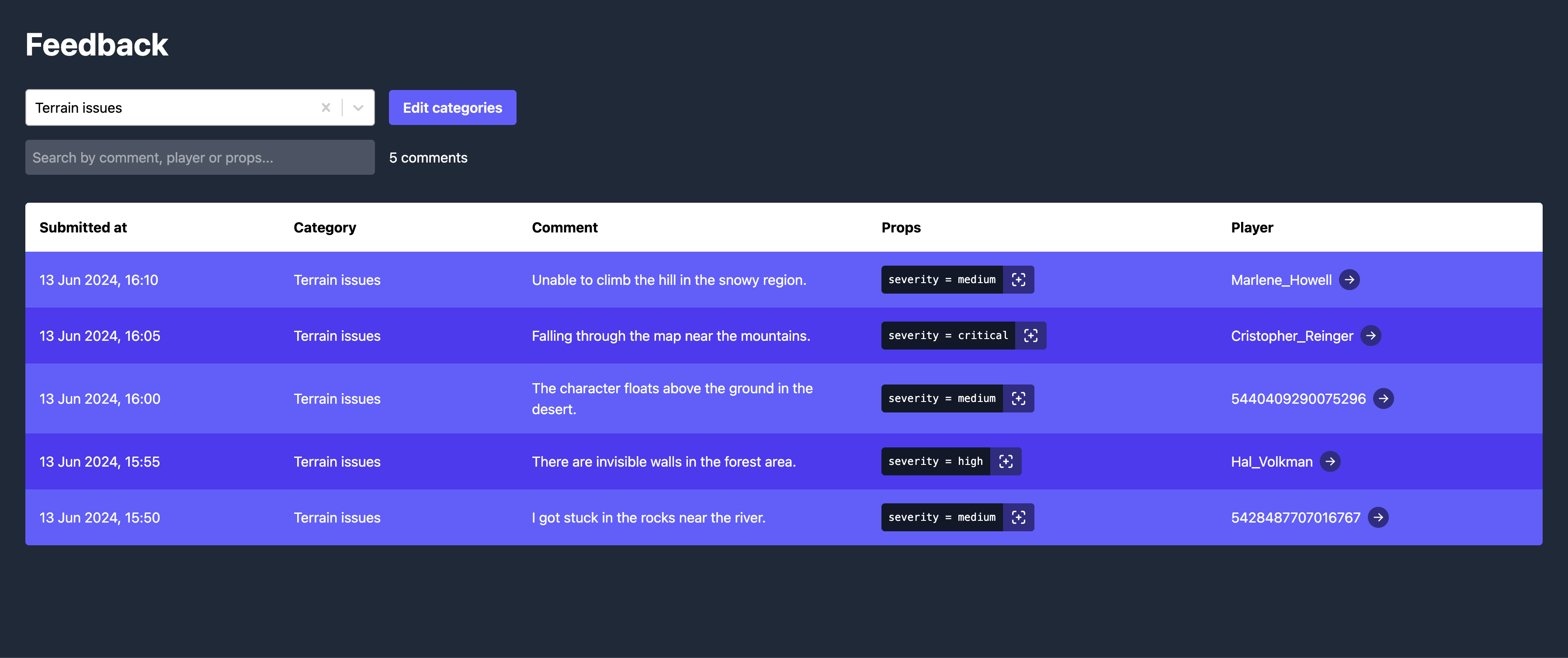
The dashboard provides several ways to organize and filter feedback:
- Filter by category - Focus on bug reports, feature requests, or any specific category
- Search feedback - Find keywords like "level 3" or "difficulty" across all comments
- Filter by props - Show only feedback where
level = "castle_3"ordifficulty = "hard" - View player context - For non-anonymous feedback, see the player's event history leading up to their submission
Props filtering is particularly powerful for spotting patterns. If multiple players mention difficulty issues and they all have level: "boss_3", you know exactly where to focus your balancing efforts.
Augmenting feedback with event tracking
Props give you a snapshot of the player's state when they submit feedback, but what if you want to see the full story? That's where Talo's event tracking comes in.
What is event tracking?
Event tracking lets you record player actions throughout your game as they happen. Think of events as a timeline of everything a player does: level completions, deaths, item pickups, menu interactions, or any custom action you want to track.
When you integrate event tracking with feedback, non-anonymous feedback automatically links to the player's event history. This means you can see exactly what happened before they submitted feedback.
How it works
Event tracking uses a simple API call to record player actions:
# Track when a player completes a level
await Talo.events.track("level_completed", {
	"level_name": "castle_3",
	"time_seconds": "245",
	"deaths": "3",
	"collectibles": "12"
})

# Track when a player dies
await Talo.events.track("player_death", {
	"location": "boss_arena",
	"cause": "fall_damage",
	"health_remaining": "0",
	"attempt_number": "7"
})

# Track menu interactions
await Talo.events.track("settings_changed", {
	"setting": "difficulty",
	"old_value": "normal",
	"new_value": "hard"
})
Each event has a name and optional properties (key-value pairs) that describe what happened. These events are stored in Talo and associated with the player.
Events also automatically capture meta props - contextual information about the player's environment such as:
- Operating system (Windows, macOS, Linux, etc.)
- Game version/build number
- Screen resolution and window mode (fullscreen, windowed, borderless)
You don't need to manually collect these - Talo captures them automatically with every event. This is especially useful when debugging platform-specific issues.
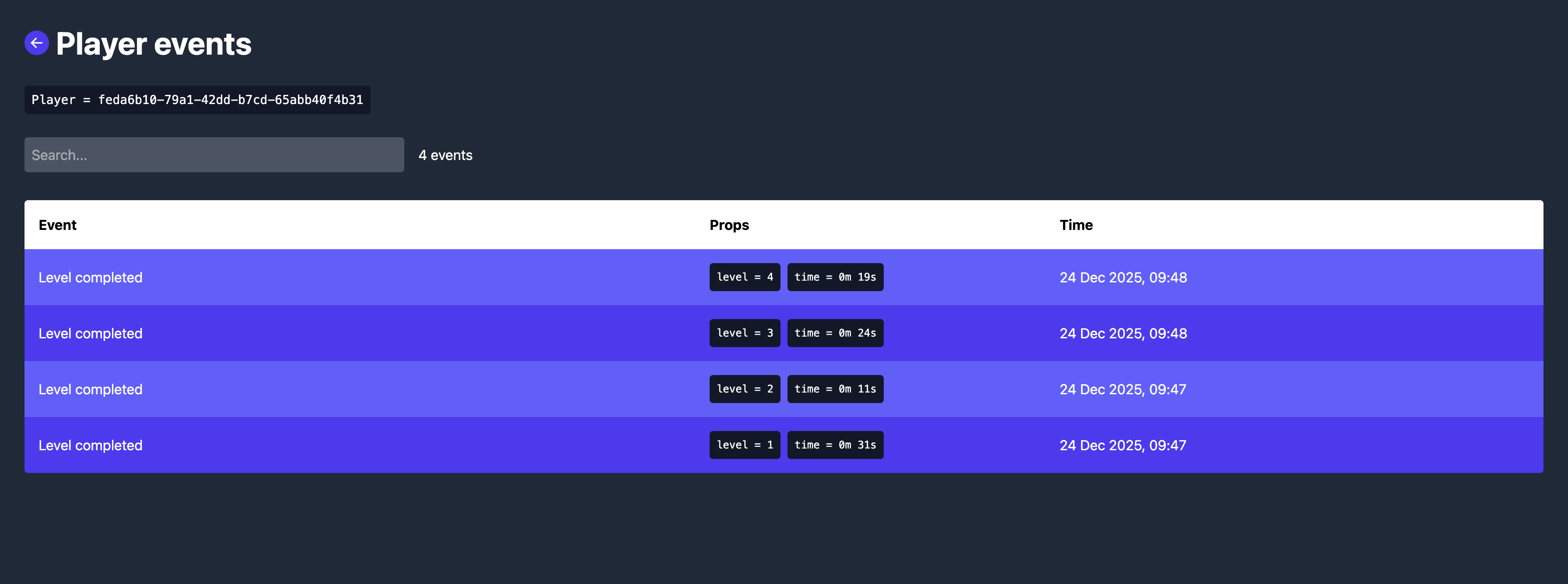
Viewing events with feedback
When a player submits non-anonymous feedback, you can view their recent event history in the Talo dashboard alongside their feedback comment. This shows you the sequence of actions that led to their feedback.
For example, a player submits feedback: "I got stuck and couldn't progress." In the dashboard, you can click into their player profile and see their events timeline:
player_deathatboss_arena(attempt 1)player_deathatboss_arena(attempt 2)player_deathatboss_arena(attempt 3)settings_changed- lowered difficulty to "easy"player_deathatboss_arena(attempt 4)player_deathatboss_arena(attempt 5)quit_to_menu- after 15 minutes in boss arena- Feedback submitted: "I got stuck and couldn't progress"
Now you have the full picture: the player tried 5 times, even lowered the difficulty, and still couldn't beat the boss. This is actionable data you can use to adjust difficulty or add hints.
To learn more about implementing event tracking, check out the event tracking documentation.
Wrapping up
With just two API calls, get_categories() and send_feedback(), you can add structured feedback collection to your Godot game. Categories keep feedback organized, props provide context and the Talo dashboard makes it easy to spot patterns and prioritize improvements.
Player feedback is one of the most valuable resources you have as a developer. The difference between scattered comments and structured, contextual feedback is the difference between guessing and knowing what to fix next.
Ready to try it? Install the Talo Godot plugin, create a few feedback categories, and integrate the two API calls into your game. More details are available in our docs:
Join our Discord community for support and check out our GitHub for updates.

Build your game faster with Talo
Don't reinvent the wheel. Integrate leaderboards, stats, event tracking and more in minutes.
Using Talo, you can view and manage your playersdirectly from the dashboard. It's free!
Get started
More from the Talo Blog
Changelog: Request verification, display names and event pie charts
A new request verification system secures every API and socket call, display names are now available on player aliases and event pie charts make analytics easier to scan.
Request verification is now available for Godot, Unity and the Talo API
Protect your game from replay attacks and request tampering with Talo request verification.
Changelog: Apple Game Center, profanity filters, prop errors
Apple Game Center is now supported and props can be filtered for profanity, alongside structured error codes and a new onboarding page.
Changelog: Google Play Games, player account migration and prop arrays
Google Play Games integration, player account migration, prop arrays, self-service account deletion and more. Here's what shipped in March 2026.