
TL;DR
- What's new? Request verification is now live across the Godot plugin, Unity package and Talo's API.
- What does it do? Cryptographically signs requests and socket messages to prevent replay attacks and tampering.
- How do I get started? Create a verification key in the dashboard, enable the setting and copy the version and value into your game settings. The Godot plugin and Unity package handle signing automatically.
Why request verification matters
Without cryptographic verification, Talo has no way to confirm that a request actually came from your game client and arrived unchanged. Game clients can't be trusted: it's possible for an attacker to tamper with requests or attempt to resend them.
Request verification solves this by attaching signed proof to every request. Talo will verify that proof before processing anything and reject suspicious requests.
With request verification enabled, Talo can prevent attacks like inflated leaderboard scores or unrealistic stat updates.
How request verification works
When enabled, every request and socket message from an identified player gets a cryptographic signature. This signature proves the request legitimately came from your game and has not been modified.
The signature is generated using a verification key that you create in the Talo dashboard. Each key has a version and a secret value. Your game client uses the key to sign outgoing requests, and Talo validates those signatures on the server before updating any data.
What attacks it prevents
- Replay attacks - Because every request has a unique ID and a timestamp, an attacker cannot capture a valid request and send it again later.
- Request tampering - Because the signature covers the payload, changing fields in the request body breaks the signature and causes an immediate rejection.
- Stale request injection - Because the timestamp is checked, old requests are rejected even if they were valid when originally created.
Setting it up
Dashboard
Before you can use request verification, you need to enable it in the Talo dashboard:
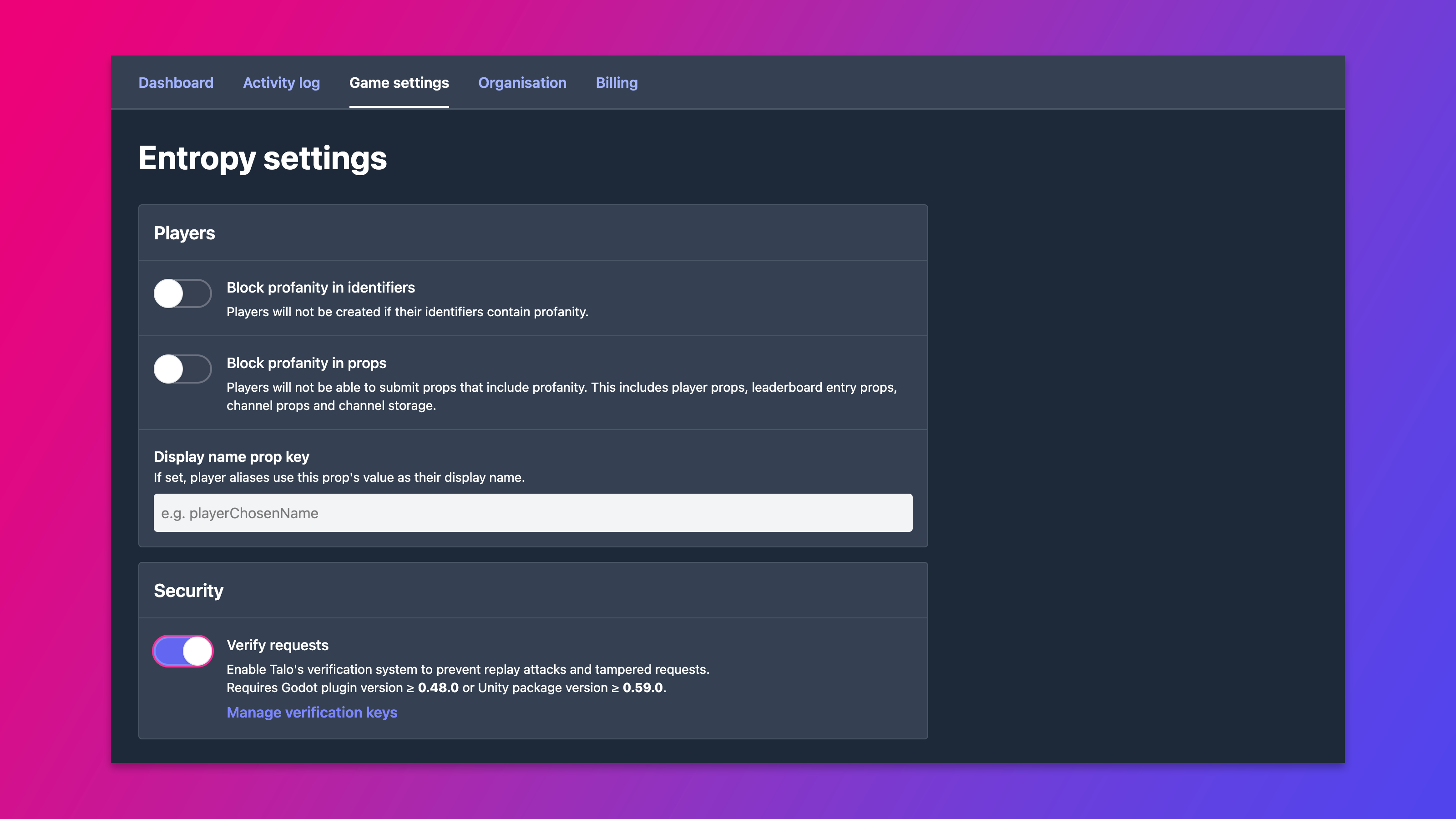
- Go to Game Settings and create a verification key. Each key has a version (like
"1") and a secret value. - Turn on Verify requests.
- Copy the version and value. You will need them for your game client.
You can create multiple keys and rotate them whenever you want.
Godot
Open addons/talo/settings.cfg and add a [verification] section:
[verification]
enabled=true
key_version="1"
key_value="your-secret-key"
That's it! The plugin handles everything else. Once enabled, requests and socket messages sent by identified players are automatically signed and verified, including player authentication, leaderboard submissions, game saves, channel messages and more. You don't need to write any extra code!
Unity
Open your Talo Settings asset in the Unity editor and fill in the following fields:
verificationEnabled=trueverificationKeyVersion="1"verificationKeyValue="your-secret-key"
The package takes care of the rest. It automatically signs all requests and socket messages from identified players, including player login, leaderboard entries, game saves, channel messages and more. No extra code needed!
Talo's API
If you're interacting with the API directly, you need to generate the signature and send it in the x-talo-signature header. The API docs have a full TypeScript example you can port to any language. This covers every endpoint that accepts player data: authentication, channels, stats, leaderboards, saves, groups and more.
WebSockets
For WebSocket connections, you simply need to prepend the signature to your payload before sending it. The socket docs have the full format and a TypeScript example. This applies to all socket messages sent by identified players, including channel messages, presence updates and relationship broadcasts. Socket verification uses the same dashboard setting as API verification.
Join the community
If you have questions, feedback, or run into edge cases, jump into our Discord or open an issue on GitHub.

Build your game faster with Talo
Don't reinvent the wheel. Integrate leaderboards, stats, event tracking and more in minutes.
Using Talo, you can view and manage your players directly from the dashboard. It's free!
Get started
More from the Talo Blog
Changelog: Request verification, display names and event pie charts
A new request verification system secures every API and socket call, display names are now available on player aliases and event pie charts make analytics easier to scan.
Changelog: Apple Game Center, profanity filters, prop errors
Apple Game Center is now supported and props can be filtered for profanity, alongside structured error codes and a new onboarding page.
Changelog: Google Play Games, player account migration and prop arrays
Google Play Games integration, player account migration, prop arrays, self-service account deletion and more. Here's what shipped in March 2026.
Changelog: Dashboard charts, Steamworks reliability and better merging
New dashboard charts for players, stats and leaderboards, a dedicated Steamworks client, improved player merging and more. Here's what shipped in February 2026.